What are Client Tags?
Client Tags enable programs to assign specific stages and details to cases, streamlining case management from start to finish.
How to Set Up Client Tags:
-
Log in to your account using the Kiip Staff Administrator Login.
-
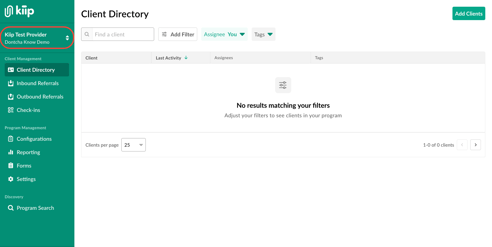
Click on the name of your organization in the top left corner. Once the menu is expanded, select the program to add client tags to.
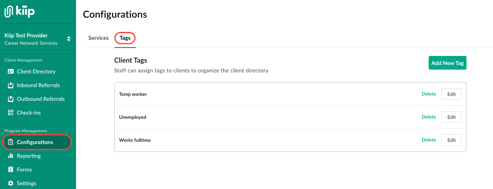
- Select the 'Configurations' tab on the left side under 'Program Management'. Select the 'Tags' configuration.
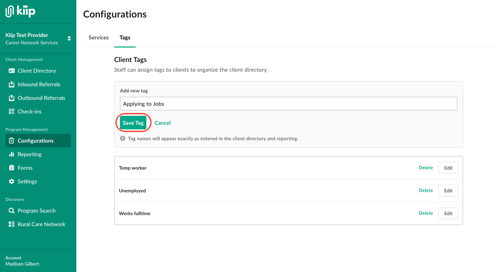
- Select 'Add New Tag' to add a field relevant to your organization's client directory. Once the new tag name is entered, click 'Save Tag' to add it. Tags will appear in alphabetic order, and can be edited or deleted as necessary.
How to Assign Tags to Clients:
-
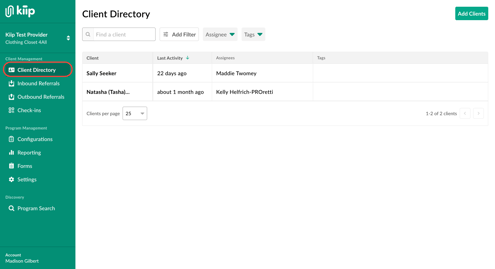
Navigate to 'Client Directory' located in the client management space.
-
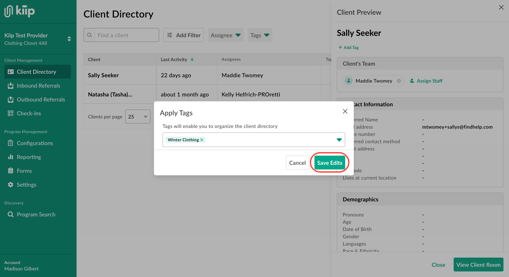
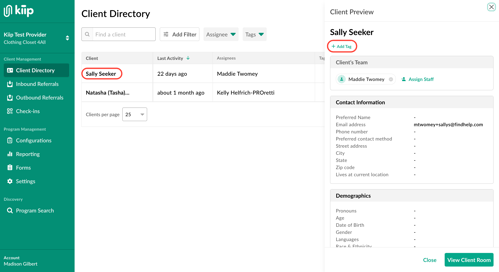
Open the 'Client Preview' by selecting a client's name and then select the option to '+Add Tag' under their name.
- Select the relevant workflow tag(s), and click 'Save Edits'.