Send a referral
Step 1
Enter your client’s room on Kiip and click “Refer Client”
Step 2
To begin a new referral click ‘Program Search’ to discover a new service. Identify the service for your client, click ‘Refer’ on the program card and fill out the information to complete the referral. While the fields are not mandatory for streamlining referral processing, obtaining the client’s consent before sending each referral is essential.
Note: Your 'Recent Programs' list will remain empty until you send your first referral. Once you refer to a program by searching for it, it will be automatically saved in your 'Recent Programs' list for easy access in the future.
Step 3
You will see a record of the referral saved to your client’s room with the date and time it was sent. Navigate to outbound clients to track your referral.
Step 4
Track the status of your referrals for updates on acceptance. Referrals will appear as ‘Claimed,’ ‘Unclaimed,’ ‘Denied’ or ‘Helped’ so you know when to follow up and how to track the success of the referral. You can see who took the action on the referral for additional transparency.
Sending a referral with a screener
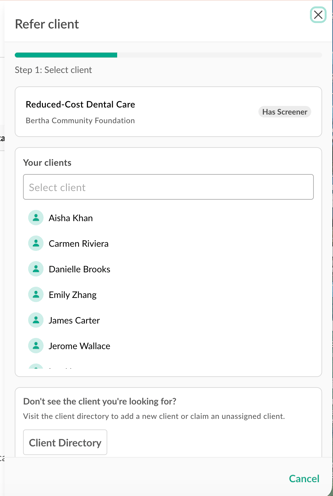
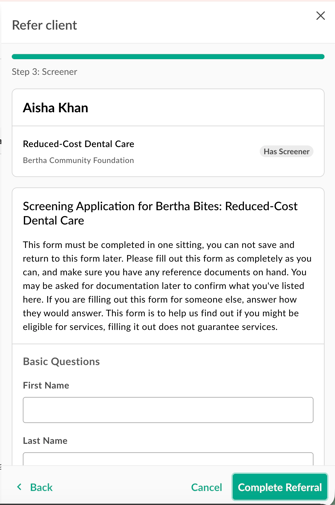
Some programs have both referrals and screeners enabled. In Kiip, you can complete the screener and submit the referral at the same time, which helps increase screener completion rates. Programs that use screeners are labeled on the program page.

|
Step 1: Select your client and choose their preferred method of communication. Confirm that you have the client’s consent before sending the referral. |
|
|
Step 2: Complete the program’s screener and submit the referral. |
|