
To improve reporting accuracy and streamline daily workflows, Program Administrators can establish a standardized, shared list of services offered by their program.
⚠️ Important Note: Staff will not be able to log service case notes until a Program Administrator has configured the service list at the admin level.
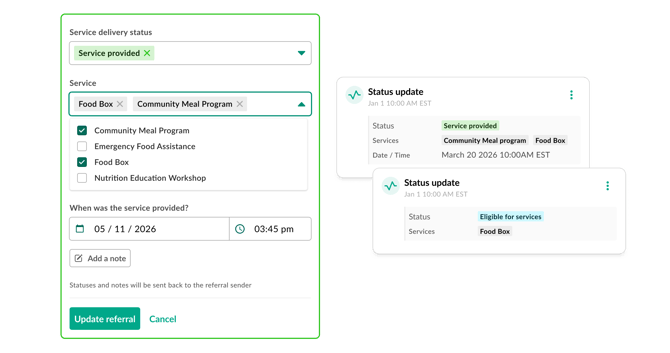
Once set up, these services will appear as selectable options within case notes. This eliminates manual typing for staff, ensures data consistency, and unlocks robust tracking via the new Services Report.
Key Benefits
- Centralized Management: Set your service list once at the program level, and it instantly updates for your entire staff.
- Consistent Case Notes: Standardized dropdown options mean fewer typos, fewer duplicate entries, and cleaner data entry.
- Enhanced Reporting: Track exactly what services are being provided, to whom, and when using the dedicated Services Report.
How to Set up Services
Admin permissions are required to access these settings.
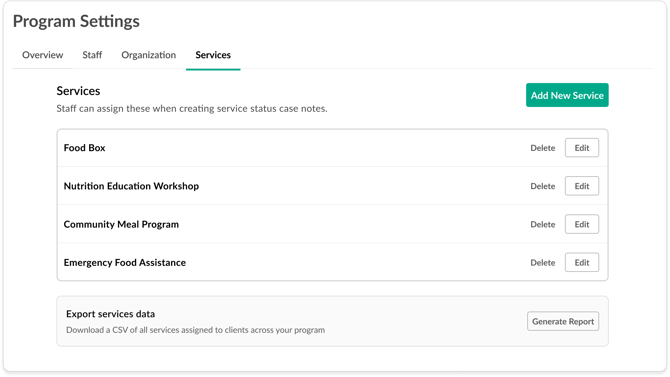
- Log into your Kiip account
- Navigate to Program Settings
- Select Services tab
- Click Add New Service
- Enter the official name of the service and click Save
Repeat this process for all services your program provides. Once saved, these options will immediately become available to your staff in their case note dropdown menus. The services will be automatically categorized alphabetically.
Applying a Service
When accepting a referral, check-in, or adding a service case note, staff members will be able to select service(s) from the list of added by an admin.
- When accepting a referral or check in: On select of eligible or provided - the service select drop down displays
- When adding a service note: On select of eligible or provided - the service select drop down displays
The Services Report
Once your staff begins selecting configured services in their case notes, Program Admins or Staff can pull actionable insights via the new Services Report.
To access the report:
- Navigate to the Reporting tab in the left navigation.
- Select Services Report.
- Filter by date range, specific services, or staff members to analyze what services are being utilized most frequently and identify trends in your program's delivery.
- Click Generate report and wait for the report to be ready
- Once the report is ready, click Download to review the CSV file.
Frequently Asked Questions
Can staff members add a new service on the fly while writing a case note?
No, not at this time. To maintain data consistency, new services can only be added by a Program Administrator through the admin settings dashboard.
What happens if we don't set up our services before we need to create a service case note?
Your team will temporarily be unable to create or log case notes for services. To ensure continuity of service, Program Admins should set up services as soon as they create their programs on Kiip if they plan to utilize this feature.
Can I edit or delete a service?
Yes, Program Admins have the ability to edit or delete a service from the Service tab under Program Settings. You can edit a service at any time and the update will be reflected on all future case notes.
Can I set up services across all of my programs on Kiip?
No, not at this time. You need to set up services on a program-by-program basis.
How will case notes appear for services that were manually entered before this feature release?
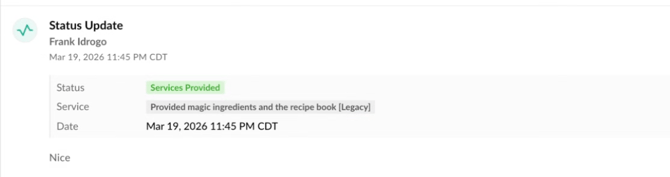
Services entered prior to the feature launch will be preserved and labeled as Legacy. In reporting, these services will appear as legacy entries to distinguish them from newly configured service selections.
Have questions?
If you have questions about mapping your services or accessing the Service Report, email Helpdesk+Kiip@findhelp.com or attend our next Office Hours.